CLICK ON IMAGE AND JOIN


LIKE FB PAGE

Saturday, 22 March 2014

TAGGED UNDER:

4 WhatsApp Tricks and Hacks [Android]


 WhatsApp Messenger is a cross-platform mobile messaging app which allows you to exchange messages without having to pay for SMS. WhatsApp Messenger is available for iPhone, BlackBerry, Android, Windows Phone and Nokia and yes, those phones can all message each other! Because WhatsApp Messenger uses the same internet data plan that you use for email and web browsing, there is no cost to message and stay in touch with your friends.

1. Whatsapp Image Trick (Change Image) with Magiapp


Mage hide which is one of the most popular. Users can Hide image inside another image using android Application name "Magiapp"  Using this app you can send Picture in another picture in whatsapp only. below picture describe you all
This application is available only for Android user there is no alternative available for Windows and Apple Store (If you know let us know by below comment section).


2. Sniff Profile Pictures of your Friends


Being for privacy reason WhatsApp does not allows you to download Pictures of your WhatsApp Contacts. But the truth is that it automatically downloads the pictures when you view them once.


The pictures you view is saved in /SD-card/WhatsApp/Profile Pictures and the image name of picture is contact number of your WhatsApp Contact.well if you want to download that picture you have to just copy that image to somewhere other directory like /SD-card/Any Other Folder .

3. Change Friends Profile Picture.

It is possible to change the Profile Picture of your Friend and shock them, this trick is related to  2nd trick.

Let's Get Started:
Step 1. Choose a good picture for your friend and download it.for instance it will take troll face.      

 Step 2. Now Rename the Image with your Friends Mobile Number. For example , i will        change it to 91800375**** of my friend Milan
 Step 3. Resize the image to 561 * 561 using paint by following these steps:
- Right Click the image and "Open With">Paint
- Press Ctrl + W and check "by Pixels"
- Set the values to 561 Height and 561 Width
- Ctrl + S to Save it.

Step 4. Just save the image into your device on certain path "/sdcard/WhatsApp/Profile Pictures".


Step 5. Turn of Wifi or Deactivate data network for a while.(till you prank your friend). as his real profile picture will not Download then.


Step 6: Show and Appreciate him for his new profile picture by showing him or by taking screenshot of your device screen.

4. Use Fancy Text in-between your conversations

are you bored with the normal text chat and try something new. then i am sure you would like this. for this trick you have to download small application in your device "Fancy Text Generator".
There are total 18 different Styles you can choose from. 


and the best part of this trick is you can change your WhatsApp statuses, name of Groups and communicate in fancy text!


More Tricks and Hacks. 

5. Lock Your WhatsApp

Get complete privacy and security of your Whats App with Pattern Messenger Lock. 

Afraid that anyone can access WhatsApp on your phone and see your private conversations?

Lock Your Whatsapp


Messenger Lock is the solution. Messenger Lock gives a Pattern lock security for your WhatsApp messenger. 
The WhatsApp can only be accessible if you enter the pattern password correctly.

If you have naughty friends who like to send messages to other on your behalf from whatsapp, install Messenger Lock. It will still let them use the rest of the phone but block whatsapp from them.


Just Go and Download This Application

6. Hide Last Seen Stamp From WhatsApp

Wanna Hack WhatsApp? 3 Ways to Hack WhatsApp are waiting for you. 


Enjoy Trolling your friends out and Remember to comment below your Reactions!


Tuesday, 18 March 2014

TAGGED UNDER:

How Hackers Send Virus,RAT,.EXE Files to Victim on Facebook,Gmail,Yahoo etc.


WHAT IS A COMPUTER VIRUS ?

A potentially damaging computer program’s, capable of reproducing itself causing great harm to files or other programs without permission or knowledge of the user.


TYPES OF VIRUSES :-


1) BOOT SECTOR VIRUS :-

 BOOT SECTOR VIRUSES INFECT EITHER THE MASTER BOOT RECORD OF THE HARD DISK OR THE FLOPPY DRIVE. THE BOOT RECORD PROGRAM RESPONSIBLE FOR THE BOOTING OF OPERATING SYSTEM IS REPLACED BY THE VIRUS. THE VIRUS EITHER COPIES THE MASTER BOOT PROGRAM TO ANOTHER PART OF THE HARD DISK OR OVERWRITES IT. THEY INFECT A COMPUTER WHEN IT BOOTS UP OR WHEN IT ACCESSES THE INFECTED FLOPPY DISK IN THE FLOPPY DRIVE. I.E. ONCE A SYSTEM IS INFECTED WITH A BOOT-SECTOR VIRUS, ANY NON-WRITE-PROTECTED DISK ACCESSED BY THIS SYSTEM WILL BECOME INFECTED.

EXAMPLES OF BOOT- SECTOR VIRUSES ARE MICHELANGELO AND STONED.

2) FILE OR PROGRAM VIRUSES :- 

SOME FILES/PROGRAMS, WHEN EXECUTED, LOAD THE VIRUS IN THE MEMORY AND PERFORM PREDEFINED FUNCTIONS TO INFECT THE SYSTEM. THEY INFECT PROGRAM FILES WITH EXTENSIONS LIKE .EXE, .COM, .BIN, .DRV AND .SYS .

SOME COMMON FILE VIRUSES ARE SUNDAY, CASCADE.

3) MULTIPARTITE VIRUSES :- 

A MULTIPARTITE VIRUS IS A COMPUTER VIRUS THAT INFECTS MULTIPLE DIFFERENT TARGET PLATFORMS, AND REMAINS RECURSIVELY INFECTIVE IN EACH TARGET. IT ATTEMPTS TO ATTACK BOTH THE BOOT SECTOR AND THE EXECUTABLE, OR PROGRAMS, FILES AT THE SAME TIME. WHEN THE VIRUS ATTACHES TO THE BOOT SECTOR, IT WILL IN TURN AFFECT THE SYSTEM’S FILES, AND WHEN THE VIRUS ATTACHES TO THE FILES, IT WILL IN TURN INFECT THE BOOT SECTOR.

This type of virus can re-infect a system over and over again if all parts of the virus are not eradicated.
Ghostball was the first multipartite virus, discovered by Fridrik Skulason in October 1989. Other examples are Invader, Flip, etc.

4) STEALTH VIRUSES :- 

THESE VIRUSES ARE STEALTHY IN NATURE MEANS IT USES VARIOUS METHODS FOR HIDING THEMSELVES TO AVOID DETECTION. THEY SOMETIMES REMOVE THEMSELVES FROM THE MEMORY TEMPORARILY TO AVOID DETECTION BY ANTIVIRUS. THEY ARE SOMEWHAT DIFFICULT TO DETECT. WHEN AN ANTIVIRUS PROGRAM TRIES TO DETECT THE VIRUS, THE STEALTH VIRUS FEEDS THE ANTIVIRUS PROGRAM A CLEAN IMAGE OF THE FILE OR BOOT SECTOR.

5) POLYMORPHIC VIRUSES :- 

POLYMORPHIC VIRUSES HAVE THE ABILITY TO MUTATE IMPLYING THAT THEY CHANGE THE VIRAL CODE KNOWN AS THE SIGNATURE EACH TIME THEY SPREAD OR INFECT. THUS AN ANTIVIRUS PROGRAM WHICH IS SCANNING FOR SPECIFIC VIRUS CODES UNABLE TO DETECT IT’S PRESENCE.

6) MACRO VIRUSES :- 

A MACRO VIRUS IS A COMPUTER VIRUS THAT “INFECTS” A MICROSOFT WORD OR SIMILAR APPLICATION AND CAUSES A SEQUENCE OF ACTIONS TO BE PERFORMED   AUTOMATICALLY  WHEN THE APPLICATION IS STARTED OR SOMETHING ELSE TRIGGERS IT. MACRO VIRUSES TEND TO BE SURPRISING BUT RELATIVELY HARMLESS.A MACRO VIRUS IS OFTEN SPREAD AS AN E-MAIL VIRUS. WELL-KNOWN EXAMPLES ARE CONCEPT VIRUS AND MELISSA WORM


WAYS HACKERS SEND YOU SERVER,VIRUSES AND .EXE FILES VIA INTERNET:

1. Binder - 

Binder is a software which is used to bind or collaborate the server or virus you have created with some other file like a MP3,JPEG or any other file.You can fool the victim by sending him a song or picture and as soon as he opens the picture or song the Binder also gets open and starts working.


2. Crypter - 


A crypter is a tool which changes the binary code of the .exe (virus,RAT etc.)file and applies many encryptions on it which makes the .exe file undetectable.You can use Chrome Crypter.


3. Zipping - 


Another smart way to  send files is by putting your server in a Zipped folder and then sending it to the victim.Zipping the file changes the extension of the server from .exe to .zip,which bypasses the file transfer facility of gmail, facebook,yahoo etc..

USE WINRAR & Give password of that file, so AV's not enter in file.


4. Extension - 

You can change the extension of the Server you want to send as it is not possible to send .exe files,so you can change the extension of .exe to .jpeg,.mp3 etc. when you save the file and then send it to the victim.But in this method you will have to tell the victim to change the extension back to .exe after he receives the server.This method can only be used in cases where the victim is very dumb and has no knowledge of this field.
A person who is not much interested in cyber security should have knowledge of above mentioned methods as they can be used against anyone.


ENJOY !!!!!!!!!!!!!!!!!
Monday, 17 March 2014

TAGGED UNDER: ,

Top 10 Google tricks


Below is a list of our top ten Google tricks many people who use Google don't know about.

Definitions

Pull up the definition of the word  by typing define followed by the word you want the definition for. For example, typing: define bravura would display the definition of that word.

Local search
Visit Google Local enter the area you want to search and the keyword of the place you want to find. For example, typing: restaurant at the above link would display local restaurants.

Phone number look up

Enter a full phone number with area code to display the name and address associated with that phone number.

Find weather and movies

Type "weather" or "movies" followed by a zip code or city and state to display current weather conditions or movie theaters in your area. For example, typing weather 84101 gives you the current weather conditions for Salt Lake City, UT and the next four days. Typing movies 84101 would give you a link for show times for movies in that area.

Track airline flight and packages

Enter the airline and flight number to display the status of an airline flight and it's arrival time. For example, type: delta 123 to display this flight information if available.
Google can also give a direct link to package tracking information if you enter a UPS, FedEx or USPS tracking number.
Translate
Translate text, a full web page, or search by using the Google Language Tools.

Pages linked to you

See what other web pages are linking to your website or blog by typing link: followed by your URL. For example, typing link: http://pctipstric.blogspot.in/ displays all pages linking to Computer Hope.

Find PDF results only

Add fileType: to your search to display results that only match a certain file type.For example, if you wanted to display PDF results only type: "dell xps" fileType:pdf dell xps  this is a great way to find online manuals.

Calculator

Use the Google Search engine as a calculator by typing a math problem in the search. For example, typing:100 + 200 would display results as 300.

Stocks

Quickly get to a stock quote price, chart, and related links by typing the stock symbol in Google. For example, typing: msft will display the stock information for Microsoft.

:) :-) :)) =)) :( :-( :(( :d :-d @-) :p :o :>) (o) [-(

Sunday, 16 March 2014

TAGGED UNDER:

Customize folders with different colors in Windows


Everyone wants to make their computer look cool and impressive and there are many software are available to customize your computer and makes it impressive. We always keep our files and folder well organized in our computer because when we want to find some particular file or folder then it easy to find them. But if you colorize your folders and use different color for different folder then it easier to navigate them. But in windows operating system you can’t do that normally but if you use a small software then you can colorize your folders easily on your computer. So today we are here to tell you how to colorize folder with different color on your computer.

Why need to colorize folder?


If you have lots of folder on your computer then you can’t find any particular folder easily or quickly. But if you colorize your folder with different color then it is easy to navigate them than normal.

Steps to colorize folder on your computer


To colorize folder on your computer you need to use a small software named Folder Colorizer and here in this article we give you complete procedure to install  and uses of Folder Colorizer. So follow the steps below.
  • First of all Download Folder Colorizer . Don’t worry to download because it is free and 100% virus free.
  • Now install Folder Colorizer on your computer normally.
  • After complete installation of the software perform a Right Click on any folder which one you want to customize with different color.
  • Now you will see colorize as a new option in the context menu and go to that menu and then a new sub menu will appear with some different color folder icon. Now choose any color for your folder.
  • Now a new window will popup and here you need to enter your email address. Although it’s free software but while you use it for first time then you need to enter your email address for  activation. You don’t need to verify your email address by login into your email account.
  • After doing that your folders colors is changed and now do it on any folder.

Conclusion


This is the simple way to colorize folder with different color on your windows computer. In this way you will be able to customize folder weather it C, D or any drive.

If you like this article then don’t forget to comment here and share with your friends.

TAGGED UNDER:

TOP-10 TIPS To Make Windows 7 Work Faster/Speed on Computer


Hi friends welcome back to Pc TiPs AnD TriCkS. In this tutorial we will show you how to speed up your computer with windows 7 as OS.This article will be useful for those who use there PC’s at peaks.As we know windows 7 is faster than windows vista and XP ,yet we experience slowing down of our system after sometime because many of us Install different kind of software's on our PC and unfortunately we install software which doesn't match  to the requirements of our PC which leads to the slowing down of your system.Some times by installing antivirus,antispywares and downloading junk files or entering into malicious sites.

1.Disable the Aero theme on windows 7

As the aero theme interface need powerful hardware or faster computer in order to make it run smooth,so it is better to turn off the aero theme.You can do this by        
 Right clicking>personalize>windows color.


     Now UnCheck the box named “Enable transparency” and press save changes.

2.Delete unnecessary program on your pc

As it is an habit to us that whenever we hear any information about the new software ,we try to download and install it on our system and after sometime we will not use the software and leave it on our system which leads to the mass storage of junk and it consumes space.So it is better to delete the program which are not use to you and which are not used by you. 
you can do this by going into the control panel>uninstall program or features.


3.Disabling unwanted visual effects on windows 7

You can do this by the following the below steps:

  • Right click on the “my computer” and click “properties”.
  • Now on the left side press “Advanced system settings”,now a small window will pop up named “System properties”.
  • In that go to the tab”Advanced”,now you will see a window like this.


  • Now uncheck all by clicking on “Adjust for best performance” and check the last three as shown in the image below.

  • In order to take the effect restart the system or logo off and log on the system.

4.Disk defragment in windows 7

All of us know that fragmentation of files slows down the system as it makes our pc to do a lot of work.In order to make it work faster, it is better to run the disk defragment.
         start>programs>accessories>system tools>disk defragment.

Now press on analyse disk then on defragment disk.

5.Disk cleanup in windows 7

Disk cleanup cleans the temporary files,cleans the recycle bin and removes unnecessary files that uses space and decrease the system speed.
                      Start>programs>Accessories>system tools>disk cleanup.


Now select the drive and press okay and after some time a window will pop up showing temporary files and other files.select all and press okay.

6.Select few programs at the start up

Running of many programs at the start up slows down your system as they required lot of space to run.you can uncheck some of the programs at start up by going into
                                   Run>CMD>msconfig.


Now uncheck the unnecessary items and click okay.Now it will ask you to restart or continue without restart.Now press restart.
Remember that use only one antivirus program do not use another antivirus as it will slow down your system.

7.Check for virus

Many of us unknowingly enter into malicious site which results in the attack of virus to our system and decreases the speed of our system.so it is better to use a good antivirus like kaspersky, Bitdefender,K7 and anti malwares like malwarebyte etc.


8.Turn off windows screen saver and wall paper on windows 7

All the wall papers and screen saver which we use requires some memory to run so it is better not to use them in order to make your computer fast.
Right click on desktop>personalize>screen saver link   and check “none”
Now press apply and press okay.
Now click on desktop background link and Now from the location drop down menu select the solids colors and press okay. 


9.Disabling search indexing feature in windows 7

Windows searching index feature eats lot of space in the background when ever you use. mostly,all the windows users do not use it,it is better to disable for better performance.
  • Right click on mu computer and click “Manage”.
  • Now in that window click on the “services and Application” and on “services” which is on the left side.

  • Now from the list search for “Windows search” and right click on it and select “properties”.Now you will see a windows like below.

  • Now select “disabled” option in “start up type” and press apply and okay.

10.Disable thumbnail preview feature in windows 7

  • Open my computer.On the top most section there will option called “organize“,
  • Now click on the Organize button and select “folders and search option” from the drop down list.
  • Now a window will pop up showing tabs like “General,view and search“
  • Click on view tab.
  • Now in that , under files and folder check the box named “Always show icon never thumbnails” and click okay .

11-OTHERS TRICK U CAN DO ALSO 
>>>>PRESS CTL+R  >>TYPE  "%TEMP%" >>HIT ENTER>>DELETE ALL TEMPORARY FILE

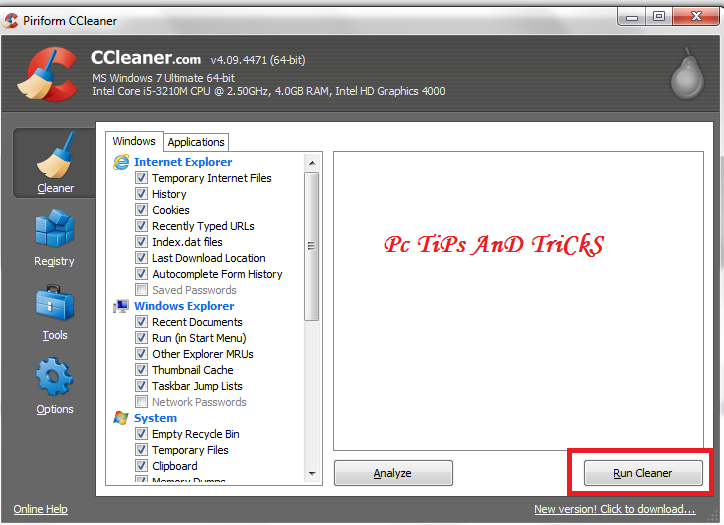
12- CCleaner 


                                                               DOWNLOAD HERE
SEE VIDEO ALSO >>

                                      HOW TO INCREASE SYSTEM SPEED IN 3 SIMPLE STEP


 ENJOY WITH FAST COMPUTER  !!!!!!!!!!!

PLEASE DON'T FORGET TO SHARE AND COMMENT 

SHARE

ad

Contact Form

Name

Email *

Message *

Copyright © 2014 | Pc TiPs AnD TriCkS | REFERENCE | Pc TiPs AnD TriCkS |
Designed By: | ANOOP KAUSHAL | Powered By: | Pc TiPs AnD TriCkS | All Right Reserved.|